
The default voicemail greeting or message on Yeastar MyPBX is fine but it is rather bland and quite boring. You can customize your own voicemail greetings/messages.
In This Article
We'll introduce two methods to change your voicemail greetings:
- Record new messages on your handset and replace the default greeting with the new one.
- Replace the default greetings with an existing audio file (custom voicemail message).
Change Voicemail Greetings on a Handset
- Dial *2 to enter voicemail on your handset.
- Enter the access password.
- Press 0 for Mailbox Options. You will then be given the choice of what type of message you want to record.
- Press 1 to record your Unavailable Message.
- Press 2 to record your Busy Message.
- Press 3 to record your name.
- Press 4 to record your Temporary Greetings.
- Choose the message that you want to record, press # to finish the record.
- Press 1 to accept your message.
- Press 2 to listen to your message.
- Press 3 to re-record your message if you don't like the previous message.
Use an Existing Audio File as one Custom Message
If you want to upload your audio file to MyPBX and use it as your voicemail greeting, you need to log in MyPBX via FTP to change the default Voicemail greetings.
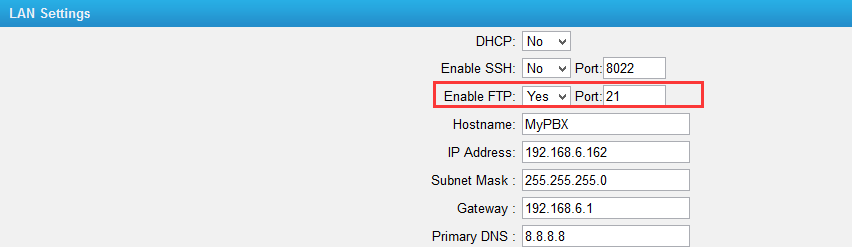
Note: before logging in MyPBX via FTP, please make sure that FTP is enabled on MyPBX.(System→Network Preferences→LAN Settings)
Example
Here we give you an example on how to change extension 301's voicemail greeting on MyPBX 192.168.6.162.
Step1. Type the FTP URL on your computer: ftp://192.168.6.162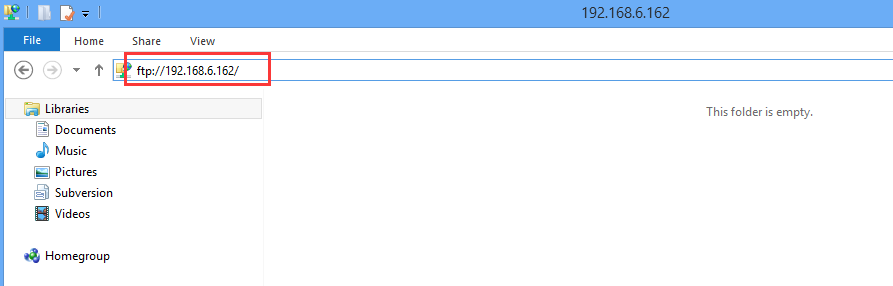
Step 2. Press “Enter” key, and enter the username and password to log on MyPBX via FTP.
Username: root
Password: ys123456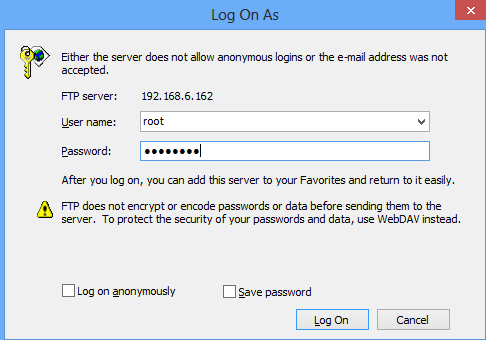
Step 3. Prepare the audio file that you want to upload to MyPBX.
The audio file should be in format ".WAV ".
WAV format: gsm 6.10 8kHz, Mono, 1Kb/s, alaw/ulaw 8kHz,Mono,1Kb/s, pcm 8kHz, Mono, 16Kb/s
- For busy message, the audio file name should be "busy.WAV ".
- For unavailable message, the audio file name should be "unavail.WAV ".
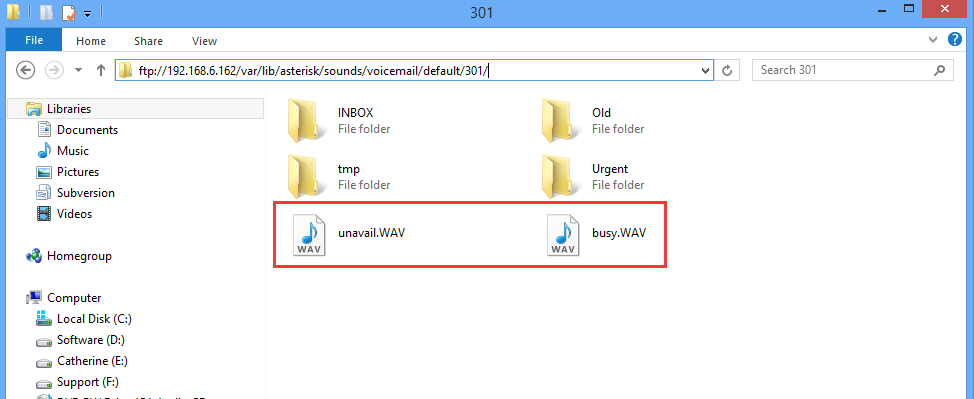
Step 4. As we will change extension 301's voicemail greetings, we should go to the FTP path:
ftp://192.168.6.162/persistent/var/lib/asterisk/sounds/voicemail/default/301/
Put the two files in the folder "301", and make a call to 301 to check the greetings.


8 Comments